3.4. Edit a form template
The features described in this section can be accessed with the Customer Account Manager and Workspace Administrator role.
3.4.1. Input the data
DocBook elements are characterized to associate specific behaviors (via attributes and associated values) with forms.
The WXE editor offers a menu which allows you to create and customize form templates without any special knowledge of the DocBook standard.
The menu is made up of three sub-menus, each with a group of buttons presented in the following sections:

3.4.1.1. Inline
This menu allows you to create inline elements in a form.
|
Button |
Editing |
Operator interface |
|---|---|---|
|
Simple text |
 |
 |
|
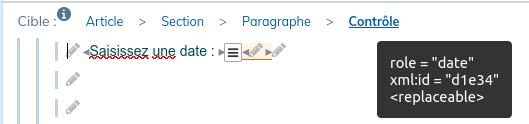
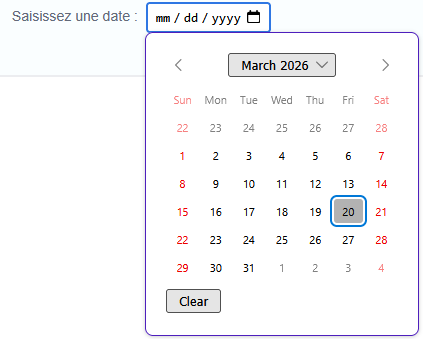
Date |
 |
 |
|
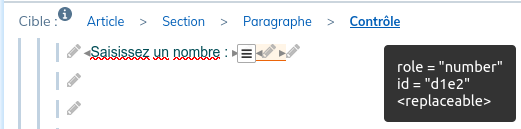
Number |
 |
 |
|
Check box |
 |
 |
|
|
 |
 |
|
Signature |
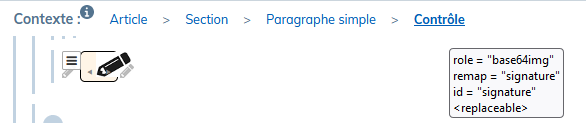 |
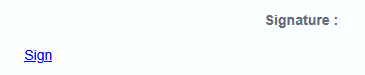 Click on the link to open the dedicated area and sign it. 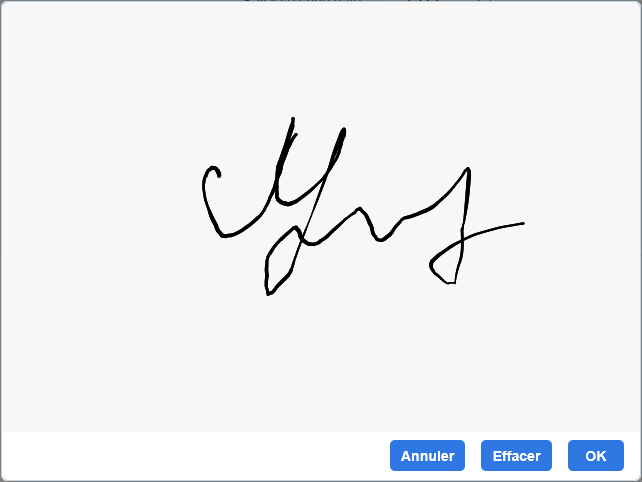 |
3.4.1.2. Contents
Use this menu to create block elements in a form.
|
Button |
Editing |
Operator interface |
|---|---|---|
|
Selection (drop-down list) |
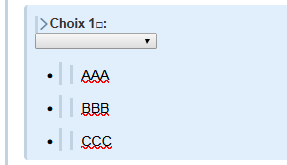 |
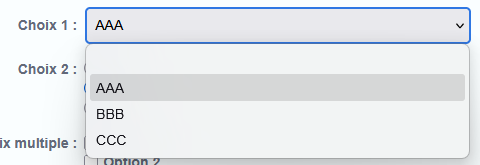 |
|
Radio buttons |
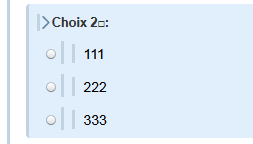 |
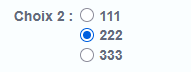 |
|
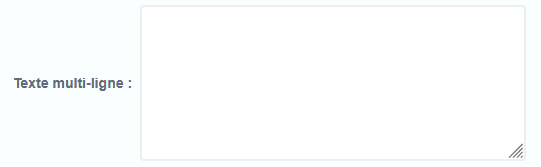
Multi-line text |
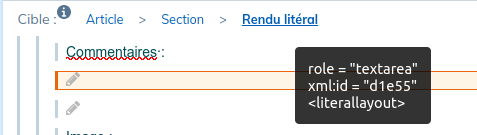 For untitled elements, attach the introductory text to the element with the |
 |
|
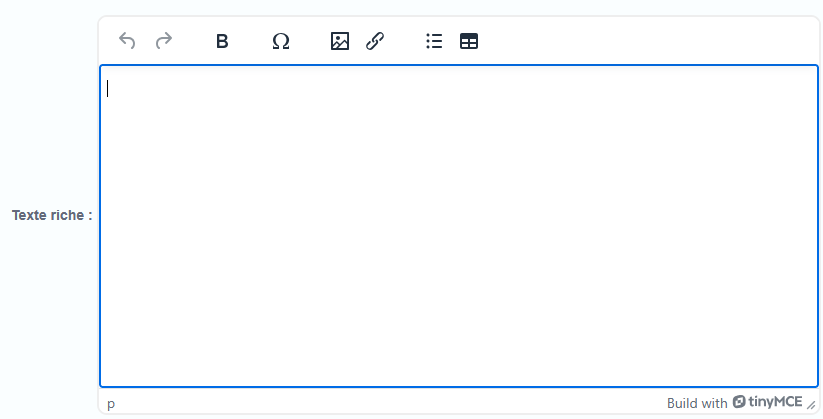
Rich text |
 |
 |
|
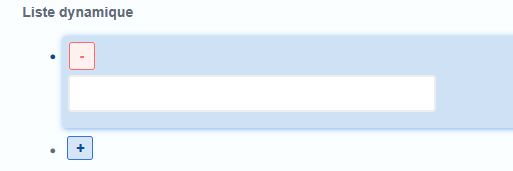
Dynamic List |
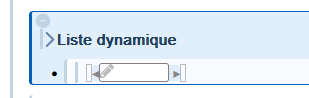 To add a list item, place the cursor in the input field of the existing item, press the Enter key twice on the keyboard. |
 |
|
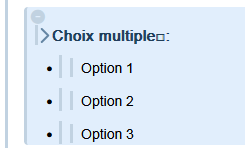
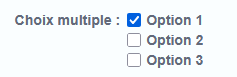
Multi-choice |
 |
 |
|
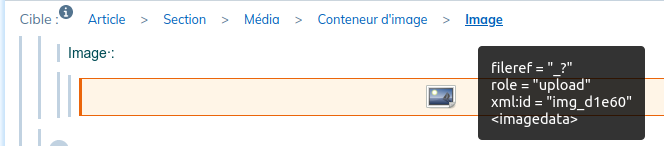
Image |
 |
 |
|
Checkbox with label |
 To edit the label content, select the element, place the desired content in the |
 |
|
Optional section |
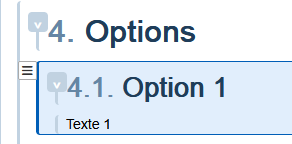 |
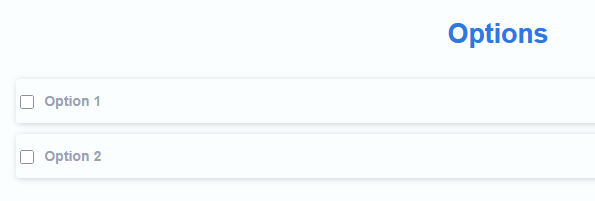 |
3.4.1.3. Variant content
This menu allows you to create structure elements with alternative content in a form.
|
Button |
Editing |
Operator interface |
|---|---|---|
|
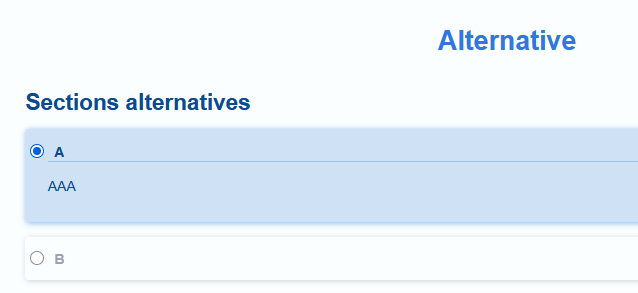
Variant section (alternative) |
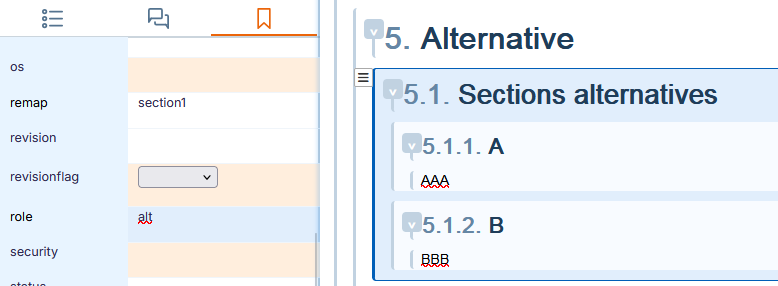 The default alternative chosen in the form must have the same value of the 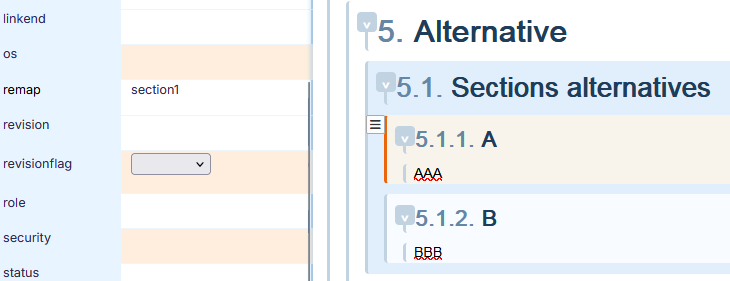 |
 |
|
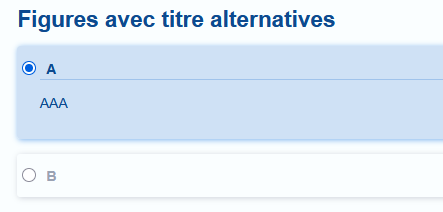
Figure with alternative title |
 The default alternative chosen in the form must have the same value of the 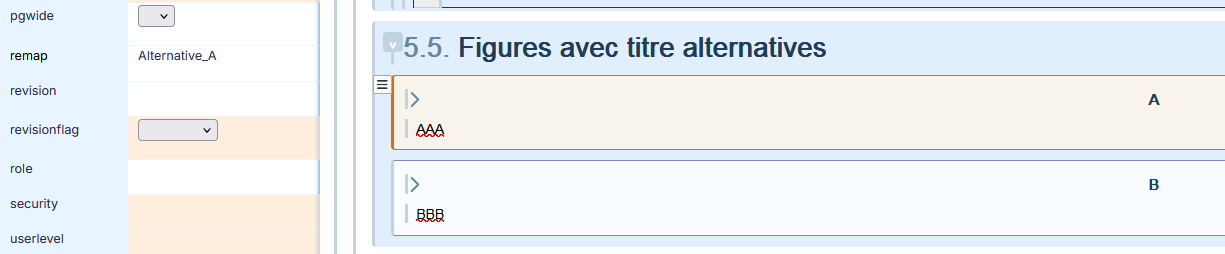 |
 |
|
Variant Figure |
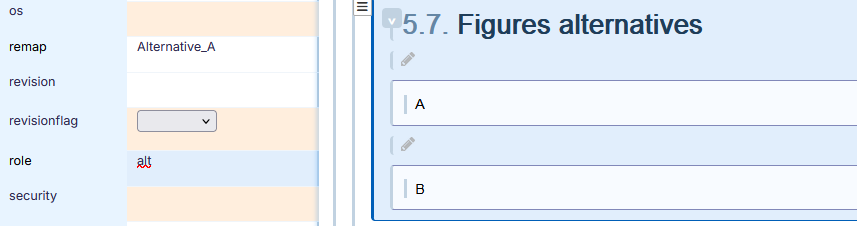 The default alternative chosen in the form must have the same value of the 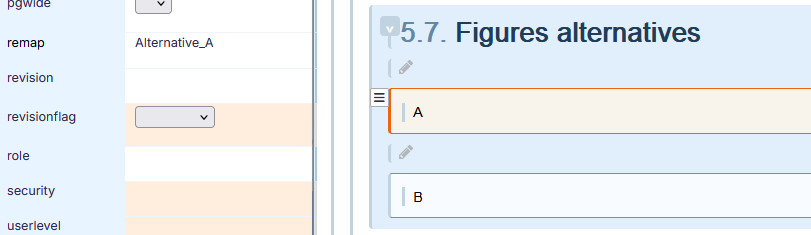 |
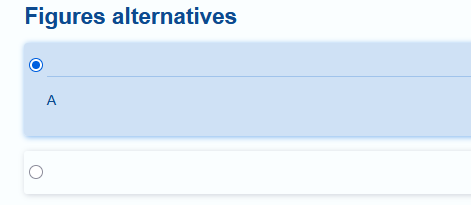 |
3.4.1.4. Customize the structure
Below you will find the modus operandi for some customizations of the elements for specific use and rendering in a form.
|
Modification |
Editing |
User interface |
|---|---|---|
|
Reference list |
To limit maintenance and reduce documents, it is better to refer to a list rather than duplicate it. Give the list an identifier: 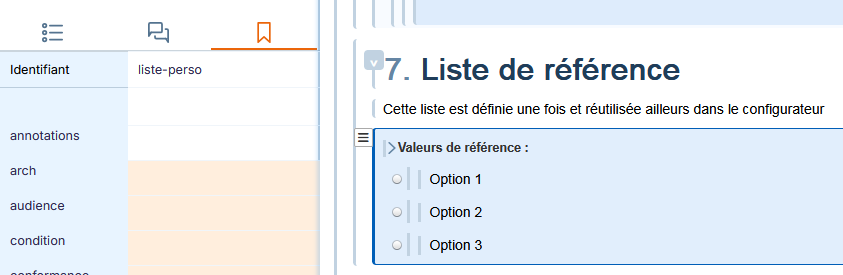 Insert a simple paragraph where you want to duplicate the list. Select it. Value the 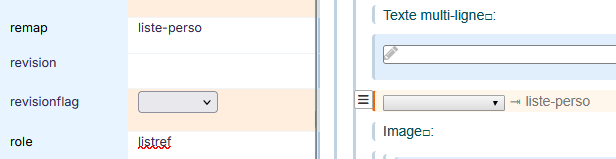 |
The rendering is identical to the drop-down list. 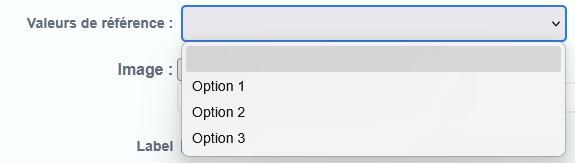 |
|
Duplicable elements |
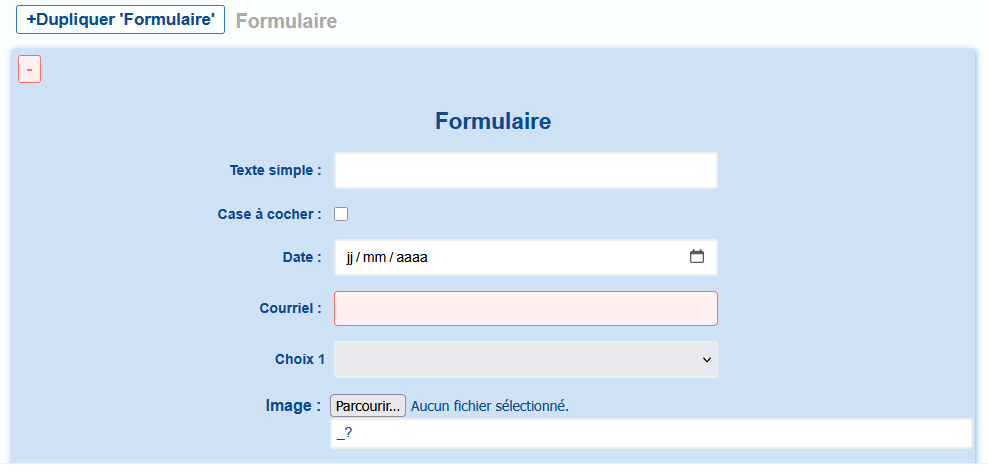
A duplicable element can be duplicated in the same form. Value the This applies to sections: 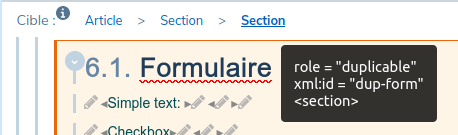 |
 |
|
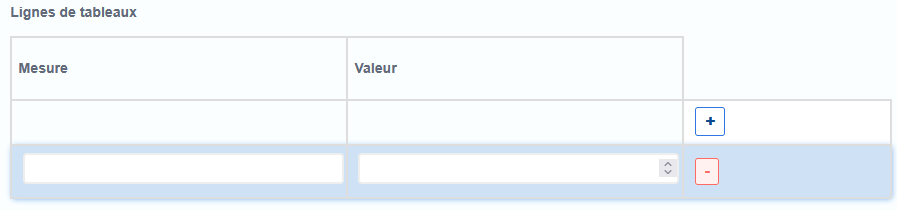
to table rows:  |
 |
|
|
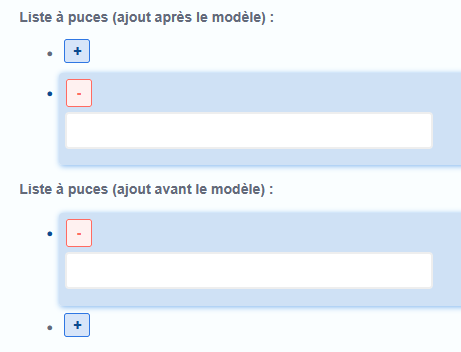
to items of bulleted lists: 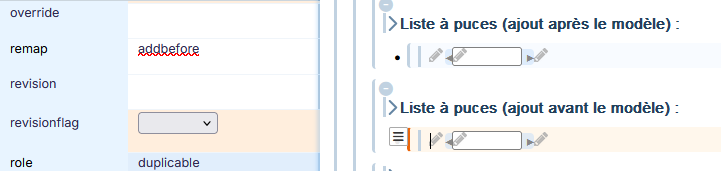 For adding a bullet before the model, value the |
 |
3.4.1.4.1. To make a field compulsory
|
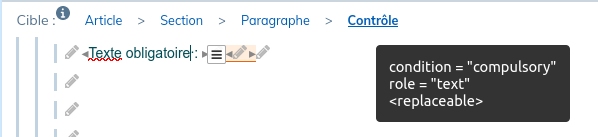
The entry of a value can be made compulsory by giving the value |
The control is bordered in red as long as it is empty When sending information, a message explains that the necessary values are missing |
|---|---|
 |
 |