2.4. Modify a user account
The customer account manager can modify the license type (within the number of subscribed licenses available) and/or the user role.
![[Important]](cco-important.svg) |
|
|
It is not possible to change the role of the customer account manager or delete his/her account. If necessary, contact your usual NeoDoc contact. Once the NeoDoc team has assigned the customer manager role to a specified account, the new customer manager can:
|
-
From the go to .
-
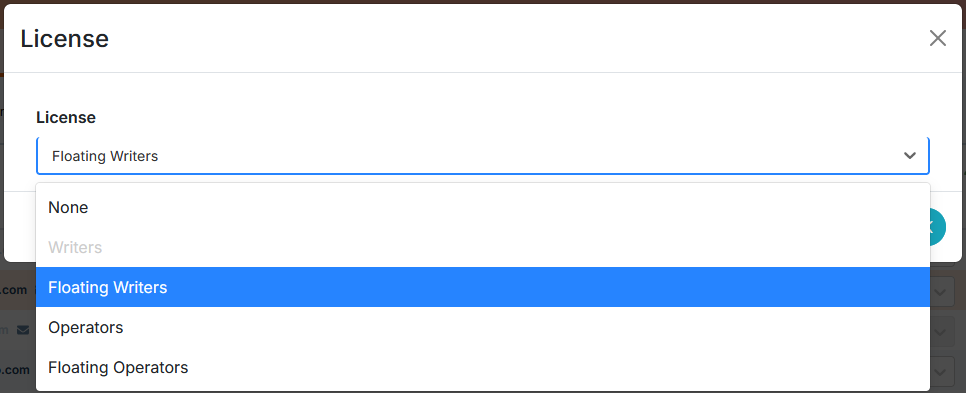
For the desired user, click on the license symbol to change its type. In the drop-down menu, select the desired license and accept the choice.
If the required type is grayed out, you need to close (if unused) or deactivate accounts with this license, or purchase an additional license (see Manage the subscription,).
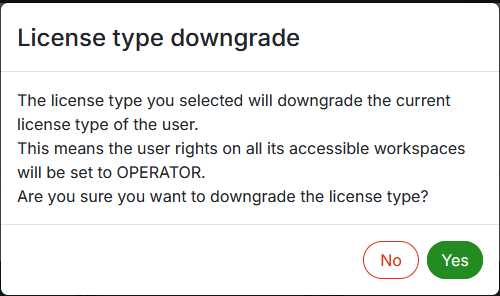
When changing from a Writers license (nominative or floating) to an Operators license (nominative or floating), the following message appears:
You can return to one of the Writers licenses at any time.
When changing a license type to None, the following message appears:
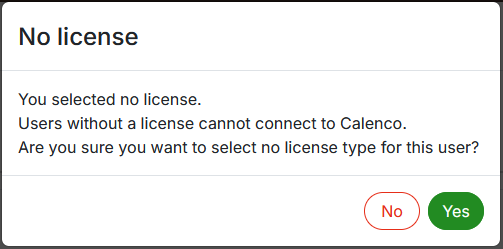
You can return to any license at any time.
-
For the desired user, click in the drop-down menu of the desired workspace to change his role.
![[Note]](cco-note.svg)
The same user can have different roles in different workspaces. It is not possible to change the role for the unlicensed user.
A user with an Operator license (nominative or floating) can only have the Operator role, as this is the most restricted access level in Calenco.
-
Associate the user with the Operator role with interactive form(s) and their corresponding form template(s) by clicking on
 to the right of the role and ticking the required tags.