5.2. Tables
This menu allows you to:
-
set the style of the title and its position,
-
create table styles.
The style of the title
Customizing a table title
-
Select to set the style of the table title.
-
Uncheck to customize the font and its styles, set the alignment of the title and its position in relation to the table.
Customizing Generic Attributes
-
Select to set up styles that are common to tables, figures, bulleted lists, ordered lists, and procedure steps.
The submenu lets you apply one of two global styles (defined in the menu Global Styles): body or title (applied by default).
You can apply a custom style by selecting a font from this part of the drop-down menu.
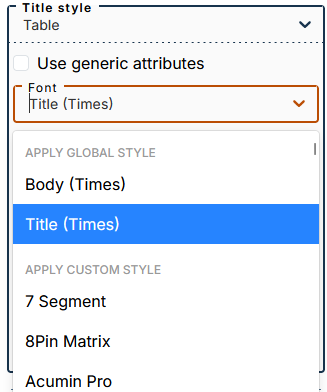
Table styles
This part allows you to create custom styles and assign them to one or more tables within a document.
Procedure 45. To create a custom style
-
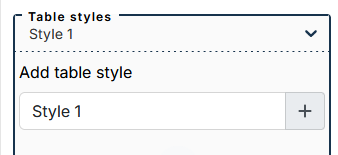
Enter a style name in the dedicated field and click on +. The style is added to the drop-down menu:
-
Set the desired settings for this style.
-
Create a new style if necessary.
![[Note]](cco-note.svg)
You can create as many styles as you need.
-
To edit a style, select it from the drop-down menu.
![[Important]](cco-important.svg) |
|
|
The style “Default (empty tabstyle)” can be customized and used for tables without attributes |
Procedure 46. To apply a style to a table
-
In the editor, select the table at the level of
tableelement. -
In the list of attributes, fill in the
tabstylewith the exact name of the custom style. Below is the example fortabstyle=Style 1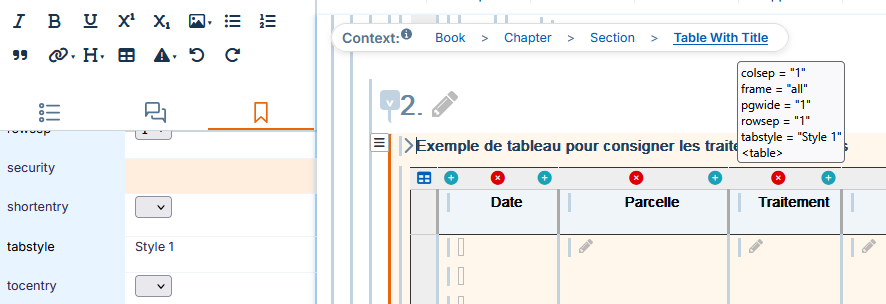
|
|
|
Tables that have the attribute |