3.5. Table of contents
This menu is dedicated to setting the table of contents:
-
specific to the whole document;
-
specific to each structure element that is part of a document;
-
for figures and tables (for documents in “book” structure).
Click on  next to the item for which you want to display the table of contents preview.
Click on  next to the items you want to enable/disable the table of contents for in your publication.
The “Maximum Level” parameter defines the granularity of the table of contents.
The “Section levels that generate a table of contents” setting defines the granularity of the table of contents specific to document sections.
![[Note]](cco-note.svg) |
|
|
The result of this setting is visible directly in the publication. |
The menu allows you to set styles for the titles of :
-
table of contents ;
-
list of figures ;
-
list of tables.
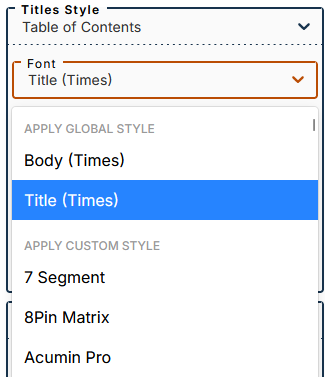
Choice of font for titles
The submenu lets you apply one of two global styles (defined in the menu Global Styles): body or title (applied by default).
You can apply a custom style by selecting a font from this part of the drop-down menu.
The menu allows you to format each type of element defined for the table of contents.
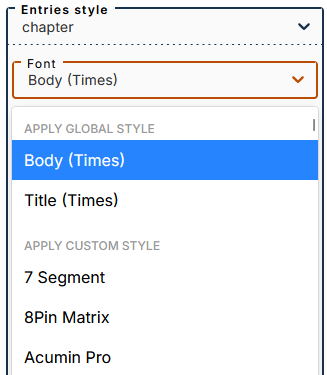
Choice of font for entries
The submenu lets you apply one of two global styles (defined in the menu Global Styles): body (applied by default) or title.
You can apply a custom style by selecting a font from this part of the drop-down menu.
Use the menu (to the right of the preview area) to hide elements that are missing from the structure of your document in the preview.