3. General
3.1. Page dimensions
This menu contains settings that apply to all pages of a document.
The default measurement unit is “millimeters”.
There are two other units of measure to choose from for some parameters:
-
pt: relevant unit for documents to be printed;
-
em: unit relative to the font size. It is relevant for documents that will be viewed on screens of different sizes (laptops, external screens, tablets, smartphones).
3.1.1. Page presentation
The studio generates pages with a particular construction.
The page is made up of 3 distinct zones:
-
header,
-
margin,
-
the footer
3.1.2. Choice of page dimensions
Page dimensions are defined in the "Page dimensions" tab of the PDF studio.

The studio offers predefined formats. Most are Ax, plus Letter format.
Choose the most suitable format from the drop-down list.

3.1.3. Edit page margins
The page margins are important, as they're where the headers, footers and body are positioned.
Horizontal, "inner" and "outer" margins are named in relation to the fold of a book.
The inner margin is the one stuck to the fold of the book.
The outer margin is the one opposite the book's fold.
For a document that is not double-sided, the inner margin is always on the left of the page, the outer margin always on the right.
For a "double-sided" document, the inner margin is to the left of the page for an odd-numbered page and to the right of the page for an even-numbered page. Conversely, the outer margin is to the right of the page for an odd page and to the left of the page for an even page.
Larger inner margins can be advantageous for high-volume square-back printing. This means the text is not on the fold.
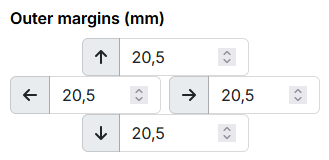
"Internal" and "external" margins define the horizontal origins and terminations of page zones, and therefore also their widths.
Page body, header and footer widths are not entered directly. These zones occupy the space left by the margins.
![[Note]](cco-note.svg)
Vertical dimensions are described below.
3.1.4. Page body margins
Page body margins will define the origin and end of the page body area vertically. So also its height.
![[Important]](cco-important.svg) |
|
|
The page body is positioned in relation to the page margins. Not in relation to the page itself. |
|
|
|
In the design phase, the top margin of the body should be greater than the height of the header. Otherwise, the header will overlap the page body. Also, the lower body margin must be greater than the height of the footer. Otherwise, the page body will overlap the footer. |

3.1.5. Height of header and footer
|
|
|
The header and footer are positioned in relation to the page margins. Not in relation to the page itself. |
Header and footer heights are entered directly in Studio PDF.
|
|
|
When designing, the header height should be lower than the upper body margin. Otherwise, the header will overlap the page body. The footer height should also be less than the bottom margin of the body. Otherwise, the page body will overlap the footer. |
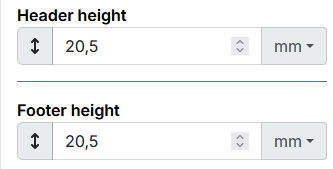
The content and other elements of headers and footers can be set in the Header and footer menu.
3.1.6. Visual check of page configuration
A simple way of checking the page size configuration is to activate the measurement tools.

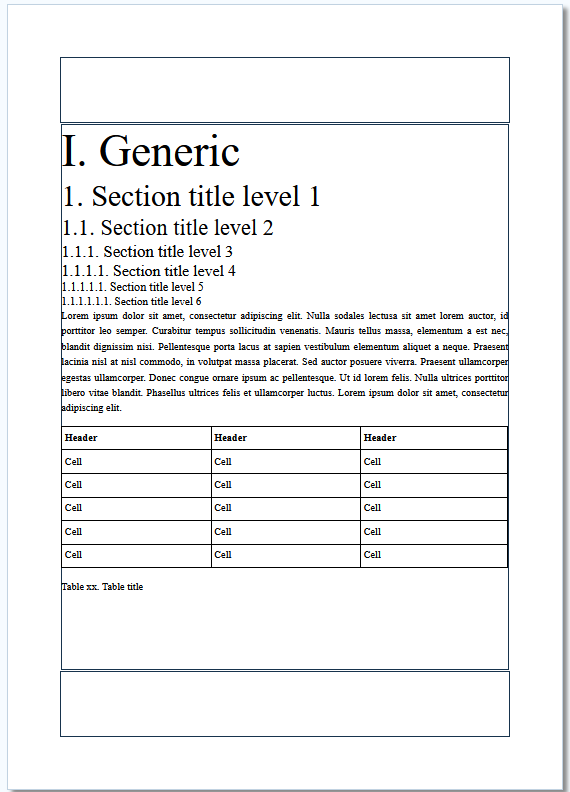
Once the measurement tools display is activated, the page body header and footer areas are framed by a black border.