6.2. Custom Xpath widget
The custom Xpath widget can be used to retrieve elements from the XML document that are not available in widgets linked to a particular element.
Xpath is a language for identifying the elements of an XML structure. The configuration of the widget consists in composing an access path for the element of the XML document. This path consists of the nodes (elements, attributes, processing instructions, etc.) linked together by path expressions.
![[Note]](cco-note.svg) |
|
|
The use of path expression types is described in Table 1, “Most Common Path Expressions”. |
The Information block in the WXE editor contains information that is not published by default. The custom XPath widget allows them to be published.
Elements that can be retrieved from the style sheet via xpath, must also be placed in the Information block of the XML document:
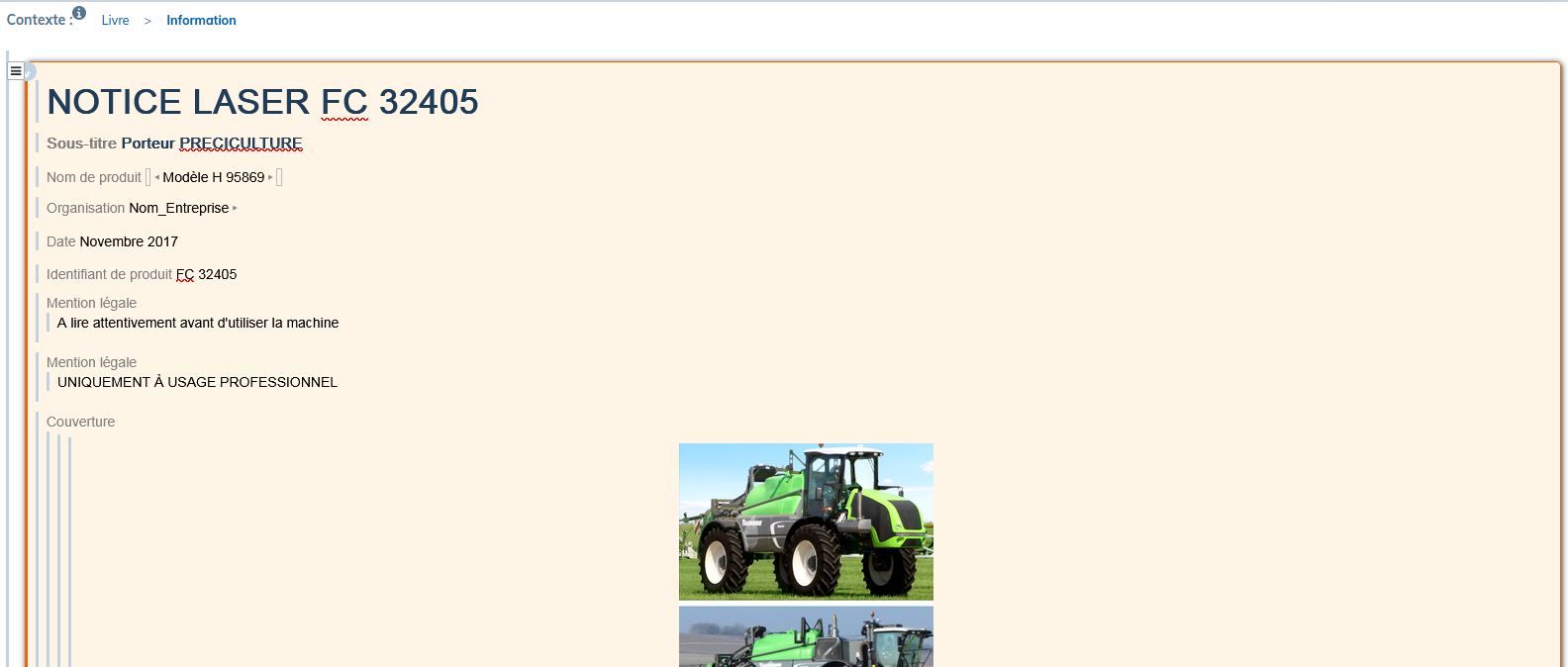
Procedure 49. To compose the xpath:
-
In the
Informationblock, select the desired element. -
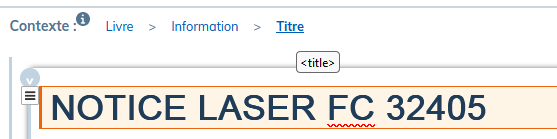
In the Context, locate the name of this element.
These names are part of the naming convention according to the DocBook standard and are displayed in the tooltip when hovering over each element.
-
In the studio, drag the widget into the preview area.
-
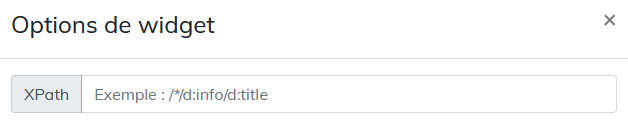
In its insert on the right panel, in the XPath field of the studio, place the nodes represented by the names of the elements. Precede each name with
d:and separate with/. Since the elements are placed in theInformationblock, the path will start withd:info/.![[Important]](cco-important.svg)
For xpath elements in the header or footer, the path must start with
/*/.This allows the style sheet to retrieve the element for all the page sequences generated by the structure elements (chapters, sections, preface, etc.) present in the document.

|
|
|
For the element |
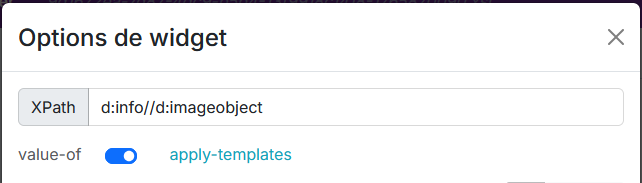
Setting the xpath to select particular elements of the same type
It is possible to retrieve several elements of the same type (several images, several tables, etc.) in the style sheet via xpath.
Here is the example of the image recovery procedure.
-
Place all the necessary images in the Information block > Cover.
-
Give each image a different value in the
roleattribute by selecting theimageobjectelement. -
Compose the xpath for each image as follows in the example: d:info//d:imageobject[@role='image_produit'].
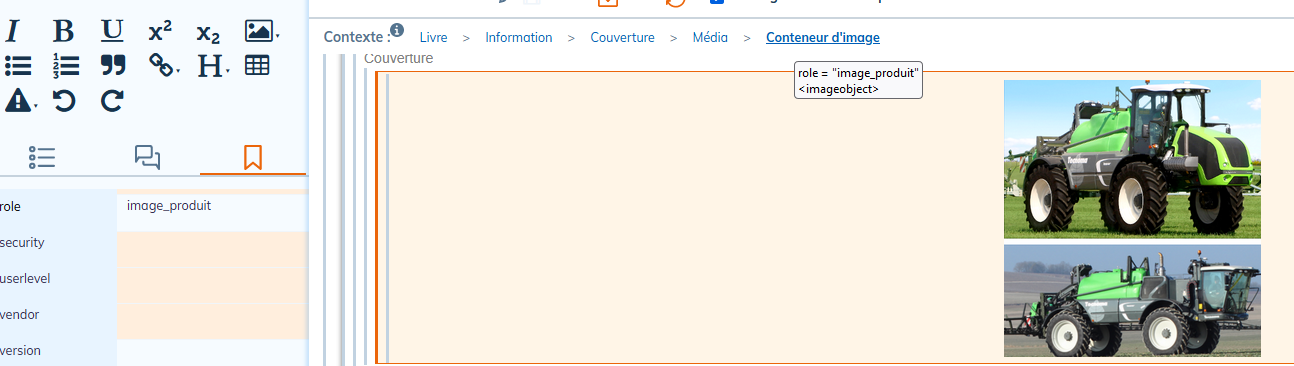
Table 1. Most Common Path Expressions
|
Syntax |
Use |
Example |
|---|---|---|
|
|
indicates that the element belongs to the DocBook namespace. |
d:info/d:date |
|
|
used to select children of an element. It indicates that we want to select an element that is directly under the parent element. |
d:info/d:date For the example given, the |
// |
used to search items in depth. |
d:info//d:date For the given example, we will search for all the |
|
|
selects all items. |
d:info/d:legalnotice/d:* |
|
|
used to filter selected items based on their attributes or values. Or to represent an index in a list. |
d:info/d:legalnotice[2] For the given example, the xpath selects the second |
|
|
selects attributes. |
d:info/d:date[@role='anniversaire'] For the given example, we select the |